

Apple Pay

Apple Pay is a leading global payment method that lets customers tokenize their payment details in a digital wallet. It supports American Express, Maestro, Mastercard, Visa, and Dutch bank accounts. Customers can make both online and near-field communication (NFC) payments.
An additional layer of security is provided by 3D Secure, which requires customers to verify their identity.
Read how Apple Pay can benefit your business on multisafepay.com
| Supports | Details |
|---|---|
| Countries | Worldwide |
| Currencies | AED, AUD, BRL, CAD, CHF, CLP, CNY, COP, CZK, DKK, EUR, GBP, HKD, HRK, HUF, ILS, INR, ISK, JPY, KRW, MXN, MYR, NOK, NZD, PEN, PHP, PLN, RON, RUB, SEK, SGD, THB, TRY, TWD, UAH, USD, VEF, ZAR For more information, see Apple - Multiple . |
| Chargebacks | Yes |
| Payment pages | Yes (current version only) |
| Refunds | Yes: Full and partial Customers receive refunds in their Apple Pay account, and they appear on their card statement within the next business day. |
| Second Chance | Yes |
More informationSee Apple – How to use Apple Pay .
Payment flow
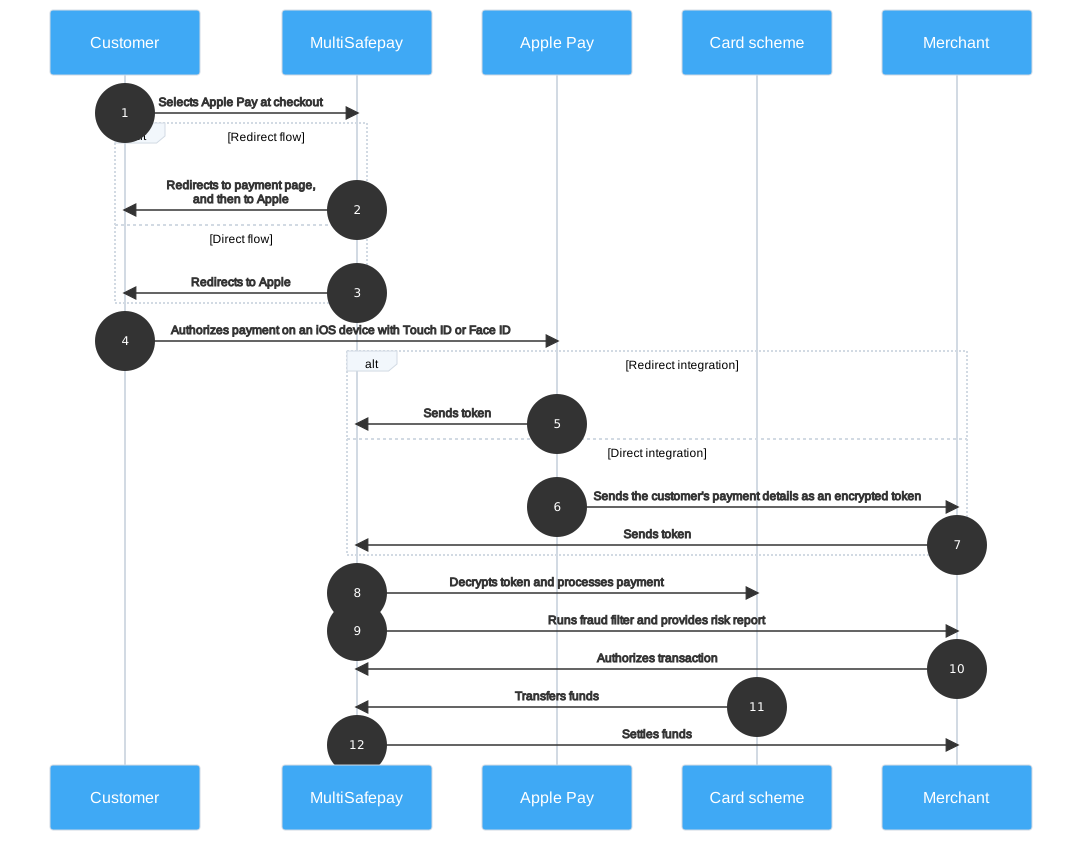
This diagram shows the flow for a successful transaction. Click to magnify.
Payment statuses
The table below sets out the order status and transaction status for payments and refunds.
| Description | Order status | Transaction status |
|---|---|---|
| The customer has been redirected for 3D Secure authentication, or the card scheme is authorizing the transaction. | Initialized | Initialized |
| The card scheme authorized the transaction, but we've flagged it as potentially fraudulent. Review it and then manually capture or decline. | Uncleared | Uncleared |
| MultiSafepay has collected payment. | Completed | Completed |
| Payment wasn't captured manually or within 5 days. | Void | Void/Cancelled |
| The customer didn't complete 3D Secure authentication. | Expired | Expired |
| The customer failed 3D Secure authentication or cancelled payment. See Card errors. | Declined | Declined |
| Refunds: Refund initiated. | Reserved | Reserved |
| Refunds: Refund complete. | Completed | Completed |
Activation
To activate Apple Pay, you must have card payments activated for your account.
Send a request to activate card payments for your account:
-
Email [email protected].
Include the following details:
- Average, minimum, and maximum transaction amount
- Annual turnover
We check your eligibility and if approved, activate the payment method for your account.
-
Once approved, sign in to your MultiSafepay dashboard .
-
To activate the payment method for:
- All websites, go to Settings > Payment methods.
- A specific website:
- Go to Websites, and then click the relevant website.
- On the Website profile page, under Payment methods, click Select payment methods.
-
Select the checkbox for the payment method, and then click Save changes.
Then, apply to MultiSafepay for Apple Pay, and activate it in your dashboard.
-
Email a request to activate Apple Pay to [email protected]
Include in the request your:
- Average, minimum, and maximum transaction amount
- Annual turnover
We check your eligibility and if approved, activate the payment method for your account.
-
Once approved, sign in to your MultiSafepay dashboard .
-
To activate the payment method for:
- All websites, go to Settings > Payment methods.
- A specific website, go to Websites, and then click the relevant website.
- Select the checkbox for the payment method, and then click Save changes.
If the payment method isn't visible in your dashboard, email [email protected] for support.
Integration
Prerequisites
- An SSL secured connection (HTTPS) is required.
NEWApple Pay is no longer limited to Safari on iOS devices. You can now use Apple Pay in other supported browsers and on supported desktop devices.
Apple Pay is not supported on Android devices.
Direct integration
For direct integration with an API integration, see Apple Pay direct integration.
API
-
For redirect integration, see API reference – Wallet order.
Example requests
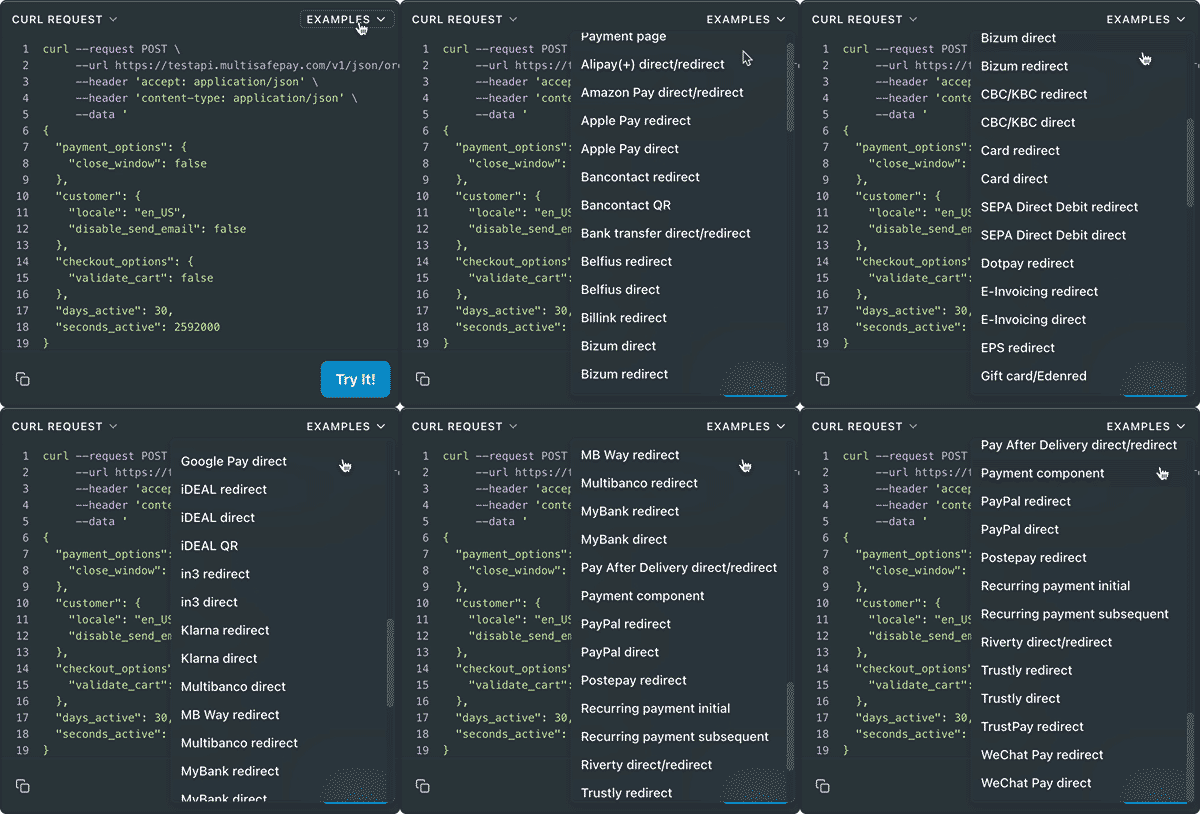
For example requests, on the Wallet order page, in the black sandbox, see Examples > Apple Pay redirect.
-
Transactions expire after 1 hour.
-
For Apple Pay to display on payment pages, you must have card payments activated for your account.
Ready-made integrations
- Apple Pay redirect is supported in most ready-made integrations.
- Exceptions: OsCommerce, VirtueMart, X-Cart, Zen Cart.
Testing
To test Apple Pay payments, see Testing payment methods - Wallets.
Branding
When integrating Apple Pay into your website, you must follow Apple's branding guidelines .\
User guide
Gateways
American Express, Maestro, Mastercard, and Visa gateways are supported.
Browser support
Apple Pay is supported in all modern browsers.
For ready-made integrations, it is currently only supported in Safari on iOS devices.
Device Primary Account Number (DPAN)
A DPAN is a tokenized card number used by Apple Pay to protect the customer’s physical card number. Its last 4 digits may differ from those printed on the physical card. When processing a transaction, the customer can find these digits in the payment card details within the wallet used for the payment.
The DPAN’s last 4 digits are returned in data.payment_details.last4 in the Get order response.
Manual capture
Apple Pay supports Manual Capture for card payments.
To activate it for your account, email [email protected]
Known errors
For most of our ready-made integrations, if the customer uses an incompatible device, Apple Pay doesn't appear on the checkout page.
For our OpenCart plugin, Apple Pay does appear on the checkout page on incompatible devices, but throws an error when clicked and the payment button is disabled.
Support
Email [email protected]
Updated 3 days ago