

Klarna via MultiSafepay

Klarna via MultiSafepay is a flexible online payment method that lets customers pay now, in 30 days (Pay Later 30), or in 3 or 4 interest-free installments. It also offers financing. MultiSafepay guarantees settlement, provides operational and onboarding support, and sets pricing, while consumer credit checks and service is managed by Klarna.
Klarna via MultiSafepay offers quicker settlement and simplified reconciliation from your Multisafepay dashboard.
Read how Klarna via MultiSafepay can benefit your business on multisafepay.com
| Supports | Details |
|---|---|
| Countries | Austria, Belgium, Denmark, Finland, France, Germany, Italy, Netherlands, Norway, Portugal, Spain, Sweden, UK |
| Currencies | EUR, DKK, GBP, NOK, SEK, CHF, PLN, USD |
| Chargebacks | Yes |
| Discounts | Yes |
| Payment pages | Yes (current version only) |
| Refunds | Yes: Full, partial, and API refunds |
Payment flow
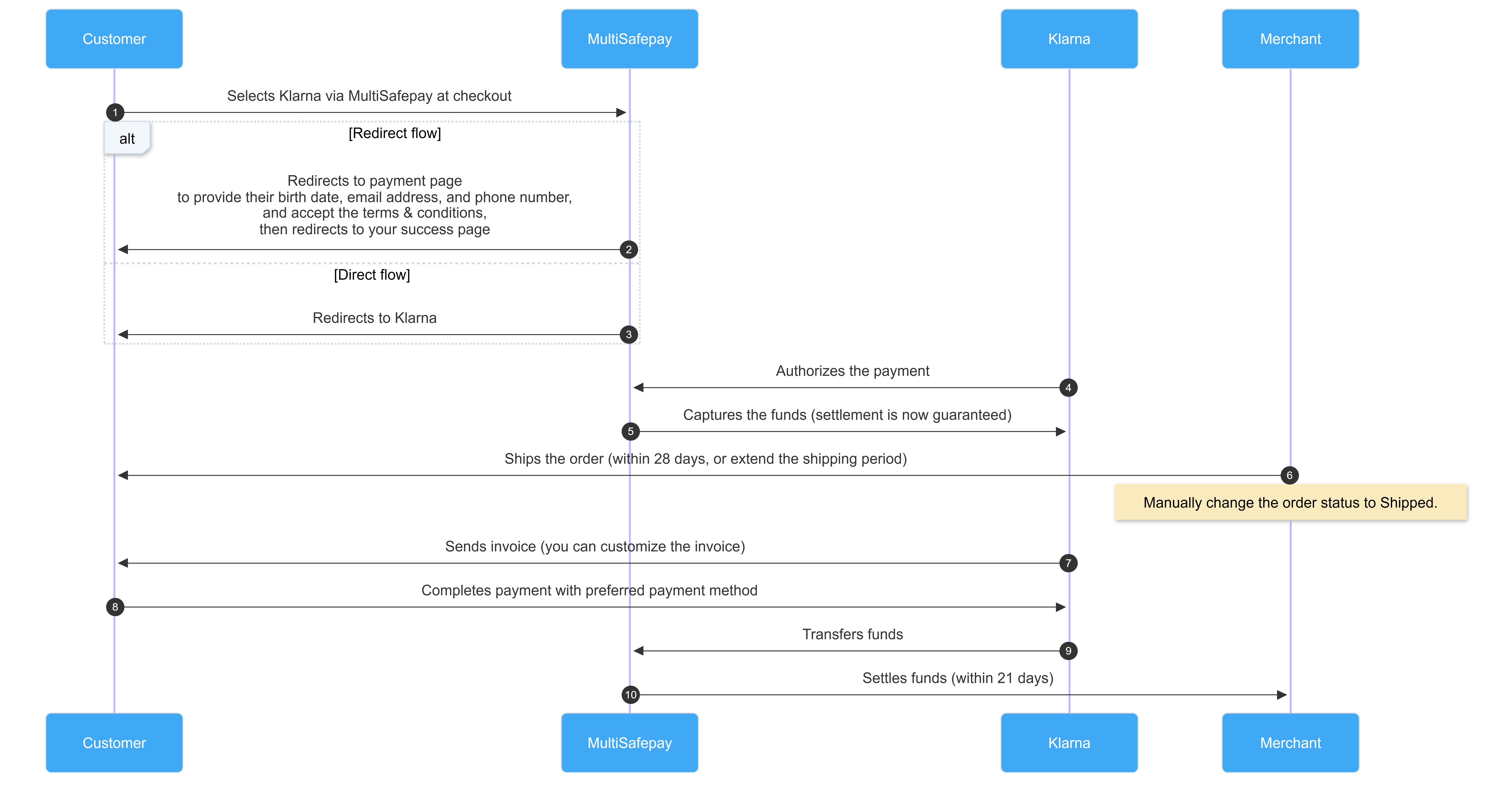
This diagram shows the flow for a successful transaction. Click to magnify.
Payment statuses
The table below sets out the order status and transaction status for payments and refunds.
| Description | Order status | Transaction status |
|---|---|---|
| The customer has been redirected to Klarna. You can still cancel with Klarna using the reservation number. | Initialized | Initialized |
| Klarna has authorized the transaction and the funds are awaiting capture. You can no longer cancel; you can only refund. | Completed | Uncleared |
| ⚠️ Note: To capture the funds, manually change the order status to Shipped. | Shipped | Uncleared |
| MultiSafepay has collected payment. | Shipped | Completed |
| The transaction expired after 1 day or you didn't change the order status to shipped within 28 days. See Expired orders. | Expired | Expired |
| Klarna authorized the transaction, but either you or the customer cancelled it before capture. | Void | Void |
| Klarna declined the transaction. Only the customer can contact Klarna to find out why (for privacy and compliance reasons). For merchant support, email [email protected] | Declined | Declined |
| Refunds: Refund initiated. | Initialized | Completed |
| Refunds: Refund complete. | Completed | Completed |
Activation
- Email a request to [email protected]. We check your eligibility and if approved, activate the payment method for your account.
- Once approved, to activate the method in your dashboard, sign in to your MultiSafepay dashboard .
- To activate the payment method for:
- All websites, go to Settings > Payment methods.
- A specific website, go to Websites, and then click the relevant website.
- Select the checkbox for the payment method, and then click Save.
If you already have Klarna enabled for your account:
- Log in to your MultiSafepay dashboard.
- Go to Settings > Payment methods > Klarna.
- Click Configure Klarna, accept the terms and conditions and click Request activation.
- We will review your request and activate Klarna via MultiSafepay for your account.
💬 Support: If the payment method isn't visible in your dashboard, email [email protected]
Integration
API
- See API reference – BNPL order.
- A
shopping_cartobject is required for all BNPL orders. See Recipes – Include shopping_cart in order . - Transactions expire after 1 day.
- For direct orders, you must display your terms and conditions in your checkout.
Ready-made integrations
Supported in all ready-made integrations (redirect).
Testing
To test Klarna via MultiSafepay payments, see Testing payment methods - BNPL methods.
User guide
Addresses
Different billing and shipping addresses are supported.
Branding
With Klarna via MultiSafepay, you can customize the branding of your payment flow. By applying your own branding, Klarna’s logo is replaced with your business logo within the Klarna payment environment.
You can upload your own logo:
- Sign in to your MultiSafepay dashboard.
- Under Settings, click Files.
- Click Upload and select your desired logo:
- For best results, use a square image with a transparent background.
- Resolution 180x180 px or higher
- The maximum file size is 1024 KB
- The following formats are supported: GIF, JPG, JPEG, PNG
To change your logo:
- Go to Settings > Payment methods
- Go to Klarna via MultiSafepay and select a supported image.
Expired orders
Orders may expire if you don't change the order status to Shipped within 28 days.
How to handle expired orders
You can send the customer a payment link from the existing order or a new order.
Existing order
- Sign in to your MultiSafepay dashboard.
- Go to Transactions > Transaction overview, and then select the expired transaction.
- Click Payment link, and then click Duplicate this order.
- On the Payment link generator page, click Generate payment link.
- Send the payment link to the customer.
New order
- Create a new order. See also Examples > Klarna redirect.
- Ship the order > Ship order.
- Send the payment link to the customer.
Disputes
A Klarna dispute occurs when a customer raises an issue with an order. Common reasons include:
- Goods: The customer didn't receive the order, returned all or part of it, or received faulty goods.
- Payments: The customer reports an invoicing or refund issue.
- Other issues: Other circumstances that may result in a disagreement about the order.
When a customer raises an issue, the order enters Klarna's dispute process. You initially have a resolution period to resolve the issue directly with the customer. If the issue isn't resolved within this period, Klarna may escalate the dispute and request supporting evidence or additional information.
For information about the dispute lifecycle, deadlines, fees, statuses, and required evidence, see Chargebacks – Klarna disputes.
Gift cards
When paying with a gift card and a BNPL, customers must enter the gift card details before placing their order, i.e. on your checkout page.
This is because BNPL methods collect and require precise order specifications. Our platform would interpret the gift card as a discount and generate incorrect order information, e.g. tax calculations.
You are solely responsible for this in your integration.
Refunds
To refund a Klarna transaction, follow these steps:
Via your dashboard
- Sign in to your MultiSafepay dashboard .
- Go to Transactions > Transactions Overview and select the relevant transaction.
- Click on the transaction to go to the Transaction summary page.
- Under Order summary, click Edit order.
- Click Refund whole order to process a full refund.
For partial refunds, you have two options:- Click the (❌) remove icon to process a refund for all units of a specific item, or
- Click Change, enter the item's name, the quantity of items you want to refund, unit price, and select the tax rate. Click Add.
- Click Save changes.
Via the API
See API reference - Refund order
Use the Get order request to retrieve the order details.
- Under Path Params, enter the
order_idof the transaction you want to refund. - Under Body Params, select BNPL Refund. Add all items in the shopping cart.
- Duplicate the object of the items you want to refund and enter a negative value for
quantity.
⚠️Note: Always include the correct tax rate in tax_table_selector for each item in the shopping cart. Excluding it will result in an incorrect refund amount.
Example request
curl --request POST \
     --url 'https://testapi.multisafepay.com/v1/json/orders/{order_id}/refunds?api_key={your_api_key}' \
     --header 'accept: application/json' \
     --header 'content-type: application/json' \
     --data '
{
  "checkout_data": {
    "items": [
      {
        "name": "example_item_1",
        "description": "",
        "unit_price": 100,
        "quantity": 3,
        "merchant_item_id": "1111",
        "tax_table_selector": "none",
        "weight": {
          "unit": "KG",
          "value": 12
        }
      },
      {
        "name": "example_item_2",
        "unit_price": 100,
        "quantity": 4,
        "merchant_item_id": "1212",
        "tax_table_selector": "BTW21"
      },
      {
        "name": "example_item_1",
        "unit_price": 100,
        "quantity": -3,
        "merchant_item_id": "1212",
        "tax_table_selector": "none",
        "weight": {
          "unit": "KG",
          "value": 12
        }
      },
      {
        "name": "example_item_2",
        "unit_price": 100,
        "quantity": -4,
        "merchant_item_id": "1212",
        "tax_table_selector": "BTW21"
      }
    ]
  }
}
Shipment
When you ship the order, you must manually change the order status from Completed to Shipped in your dashboard or via our API. This is required to:
- Capture the funds
- Prevent the order from expiring
Changing the status is not required to trigger invoicing.
How to change order status to shipped
You can change the order status to shipped:
In your dashboard
- Sign in to your MultiSafepay dashboard .
- Go to Transactions > Transactions overview, and then click the relevant transaction.
- On the Transaction details page, under Order details, click Change order status.
- Change the status to Shipped.
- Send the customer the track and trace details, if relevant.
In your backend
Our ready-made integrations automatically update the order status in your dashboard when you set the order to Shipped in your backend.
Exceptions apply for the following integrations, where you must manually change the order status to Shipped in your dashboard:
- Shopify
- Ready-made integrations that are End-of-life (EOL).
For other ready-made integrations, make an update order API request.
Extend the shipping period
If you cannot ship the order within 28 days, you can extend the time period for up to 180 days in segments.
If the order is not captured during this time, the order status and transaction status change to expired.
How to extend the shipping period
- Sign in to your MultiSafepay dashboard .
- Go to Transactions > Transaction overview, and then click the relevant transaction.
- On the Transaction details page, under Order summary, click Extend.
Surcharges
Due to changes to the Wet op het consumentenkrediet, merchants who apply surcharges to BNPL methods are now deemed credit providers under article 7:57 of the Burgerlijk Wetboek. This requires a permit from the Authority for Financial Markets (AFM).
We therefore strongly recommend not applying surcharges.
For more information, see Klarna – Welk bedrag kan ik maximaal doorberekenen aan mijn klant?
Support
Email [email protected]
Updated 2 months ago