

Tap to Pay activation
We currently offer this product in the following countries:
| Countries | Netherlands, Belgium |
| Countries for partners | Netherlands, Belgium, Italy, Spain |
If you are interested in our Point of Sale solutions, email [email protected]
Tap to Pay is a Point of Sale (POS) application that enables supported Android devices to accept contactless payments without dedicated payment hardware.
Requirements
- A MultiSafepay account
- MultiSafepay's Tap to Pay payment application
- Android 11 or above
- Your device supports and has NFC enabled
- An active internet connection (Wi-Fi or mobile data)
You can verify device compatibility by installing the Tap to Pay app. During onboarding, the app automatically checks whether your device meets the requirements. The first onboarding steps in the app will check your device and confirm if your device is compatible.
Activation
Follow the instructions so successfully activate your device:
Sign in to your dashboard
Sign in to your MultiSafepay dashboard .
Generate the activation QR code
Go to Point of Sale > Terminals. Click Add Android device. A new terminal group is created automatically, which you can use to add and manage multiple terminals.
For first-time device onboardings with Tap to Pay, a dialog is displayed. Review the pricing details and select the checkbox to accept the terms and conditions, then click Continue.
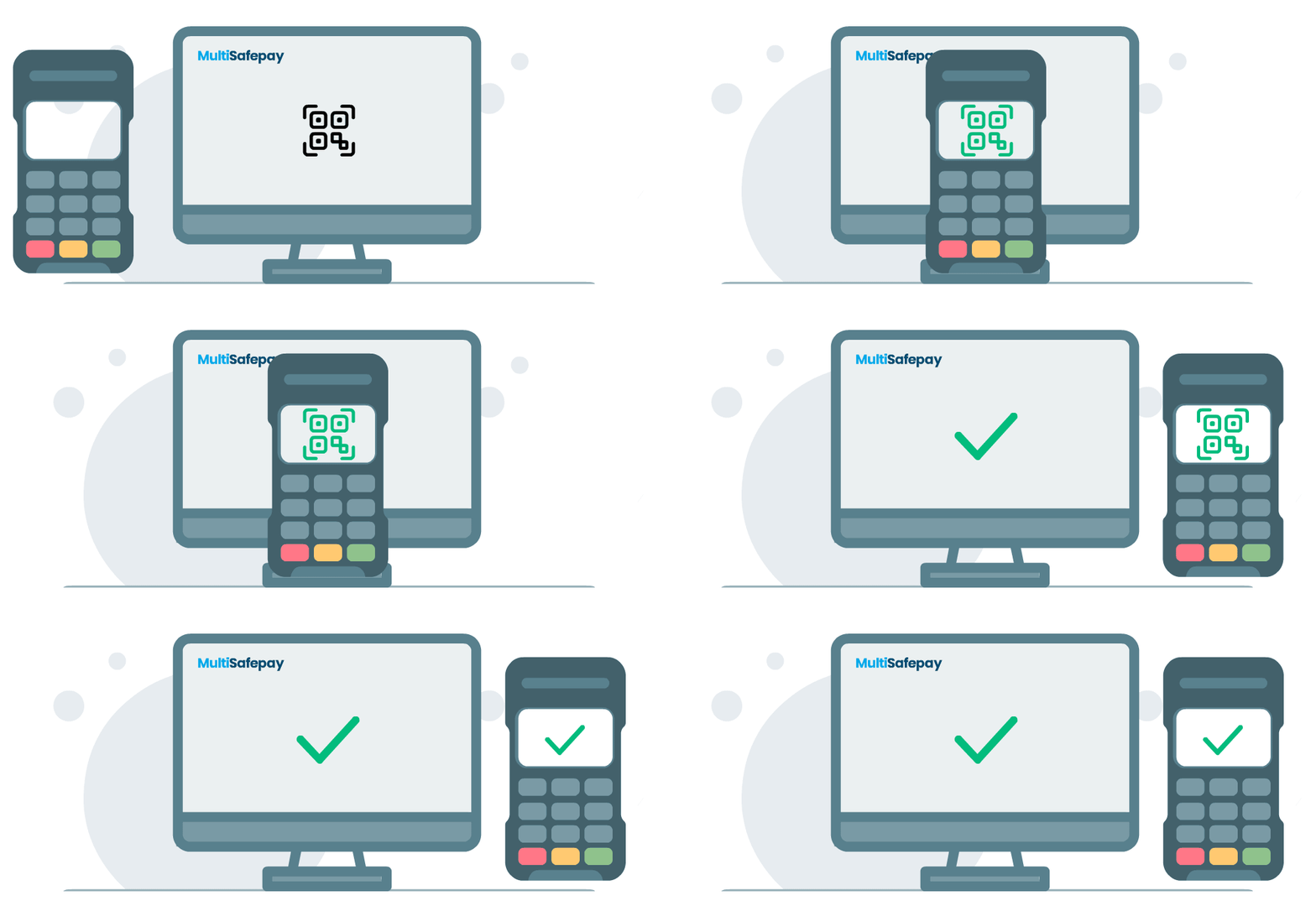
A QR code is displayed in your MultiSafepay dashboard.
Install the Tap to Pay app and activate your device
Install the MultiSafepay Tap to Pay app from your device's app store and complete the initial onboarding steps.
The app automatically checks whether your device meets the compatibility requirements.
After completing the relevant steps, click Scan QR and scan code from your MultiSafepay dashboard using your device's camera.
Next step
Updated 5 days ago